
This guide will walk you through how to utilize the key features available within the Radiology Image Viewer within the TrueLearn platform.
Important note: The Image Viewer is not compatible with TrueLearn’s mobile app. The Radiology SmartBank can be used on a mobile browser; however, for the best experience, we recommend using a laptop or desktop computer.
When reviewing images within the interactive Image Viewer, you will have access to 1-5 images.
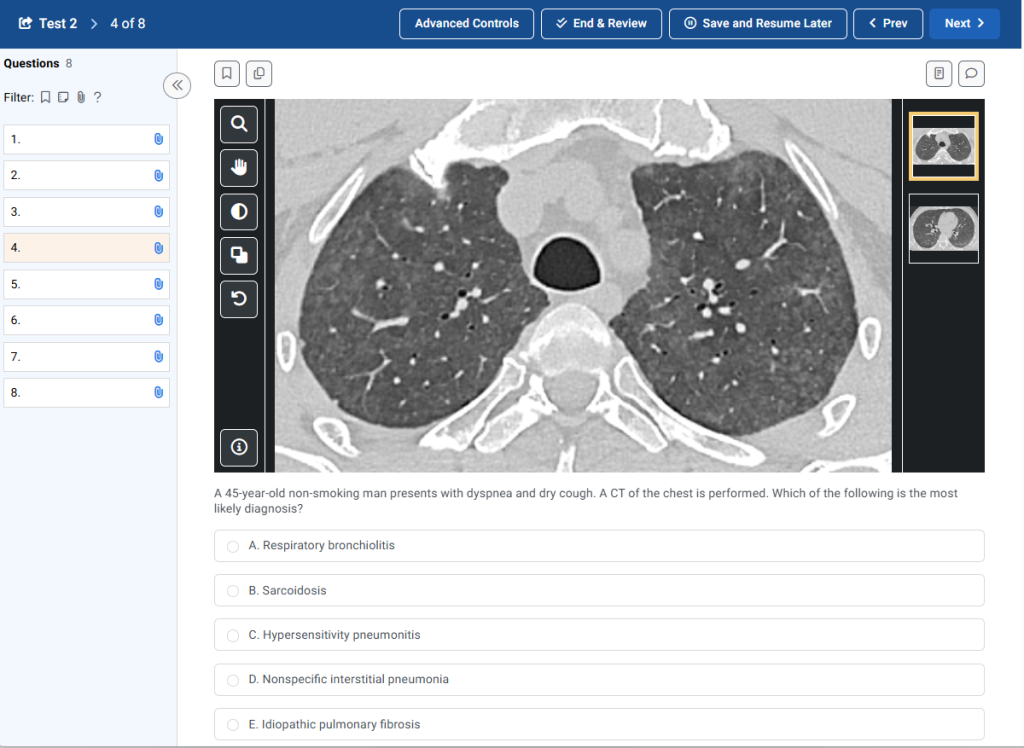
Use the left-hand panel to interact with the viewer. The info button provides descriptions of each control.
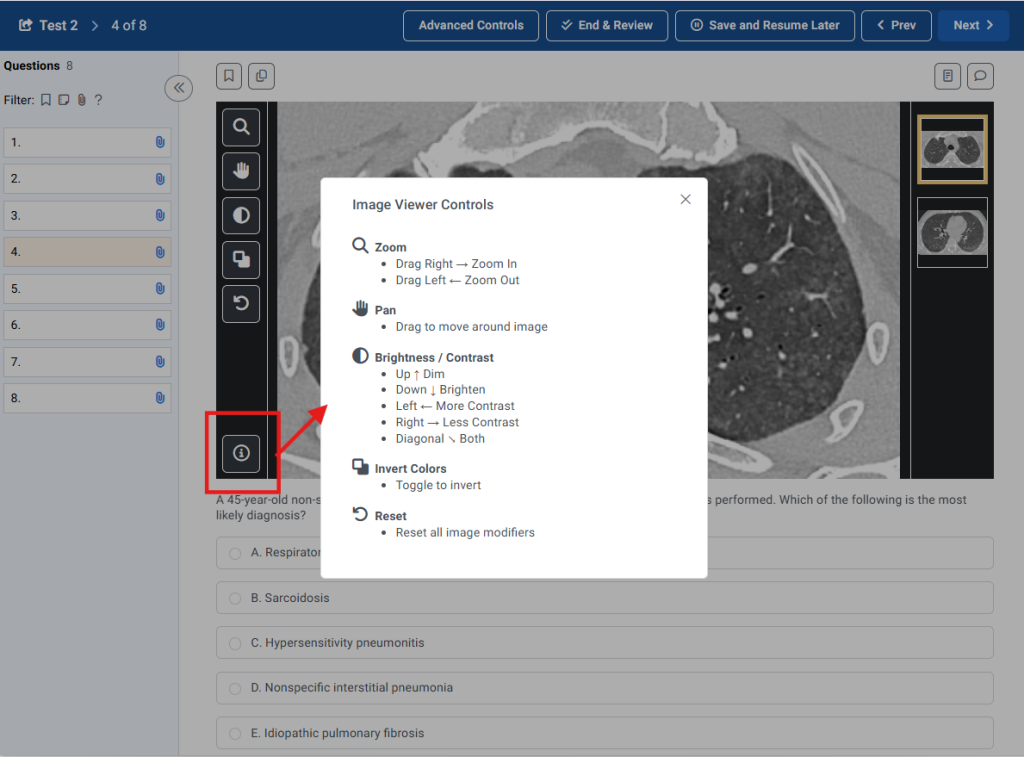
To zoom, select the magnifying glass icon, then click and drag right to zoom in or click and drag left to zoom out.
To pan, select the hand icon, then click and drag the image to move it around.
To adjust brightness and contrast, select the semicircle icon, then click and drag to adjust brightness (up or down), contrast (left or right), or both (diagonal).
To invert colors, click the overlapping squares icon.
To reset the image, click the reset arrow icon.
To move between images, click the individual thumbnails, or use Shift + Down and Shift + Up on your keyboard.