How to adjust the items per page view – InteleShare Worklist
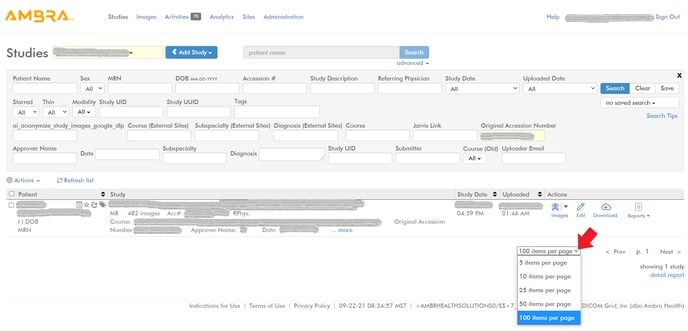
Here is how to adjust the number of items you see on your InteleShare Worklist
- On the worklist page, scroll to the bottom of the page.
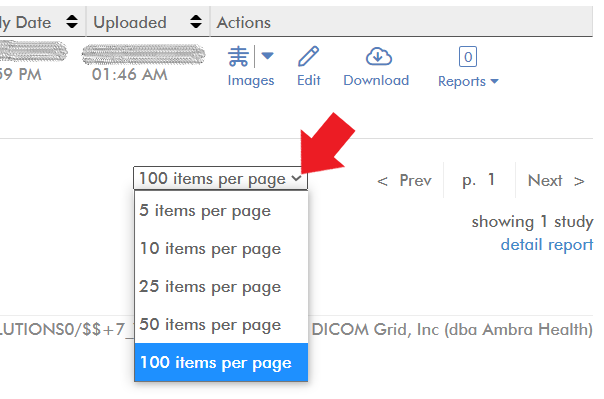
- On the right bottom corner, find the drop down menu that adjusts the items per page (red arrow)
- Click the menu to increase or decrease the number of items visible in your worklist view
I’m seeing a pixelated image when I use InteleShare, help!
The pixelated overlay sometimes seen when viewing imaging in InteleShare can be turned off by going to “VIEW” in the toolbar and selecting “Hide Overlays”.
I’m seeing an older version of InteleShare. How can I make sure I’m using the newest version?
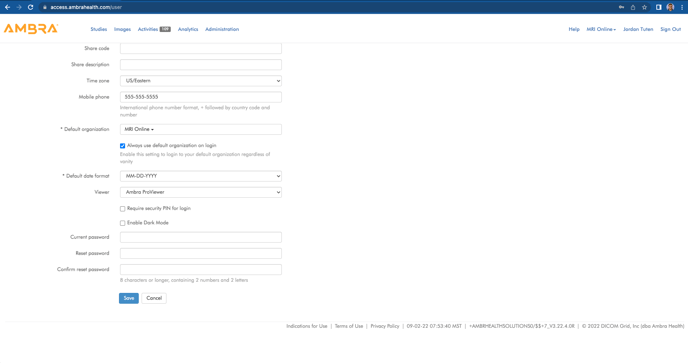
To ensure you are using the most up-to-date version of InteleShare follow these steps to change your settings:
- Login to your InteleShare account
- Click on your name in the upper right-hand corner
- Under Viewer select InteleShare ProViewer
- Click Save to save your settings
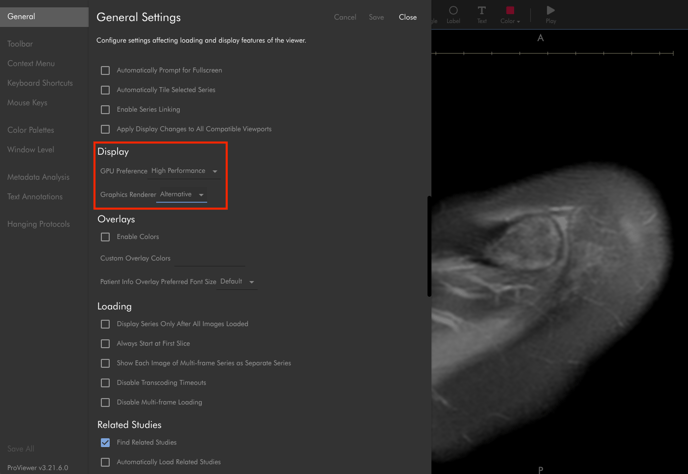
How do I change the Image Rendering Setting in InteleShare?
Instructions for how to change the image rendering settings in Ambra:
In the ProViewer settings, go to:
- General > Display > Graphics Renderer, then choose the “Alternative” option
- Save the settings and then close the Settings window
See the image below to find the settings location in InteleShare
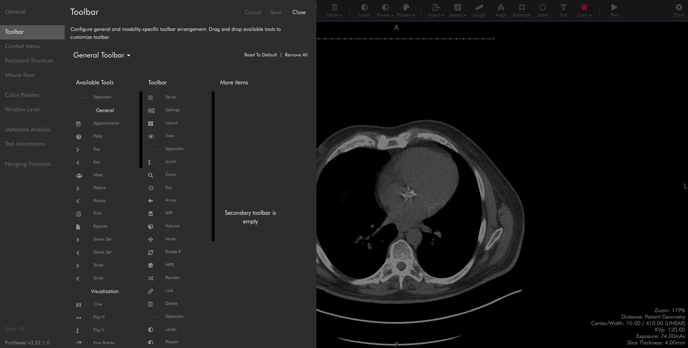
How to change the InteleShare ProViewer Toolbar Settings
In the ProViewer settings, go to:
- General > Toolbar
- From the “Available Tools” column, drag and drop the specific tool over to the middle “Toolbar” column
- Save the settings and then close the Settings window
- The study will reload with the updated toolbar displayed
See the image below to find the settings location in InteleShare