This guide will walk you through how to utilize the functionality available in our Mobile Radiology Image viewer.
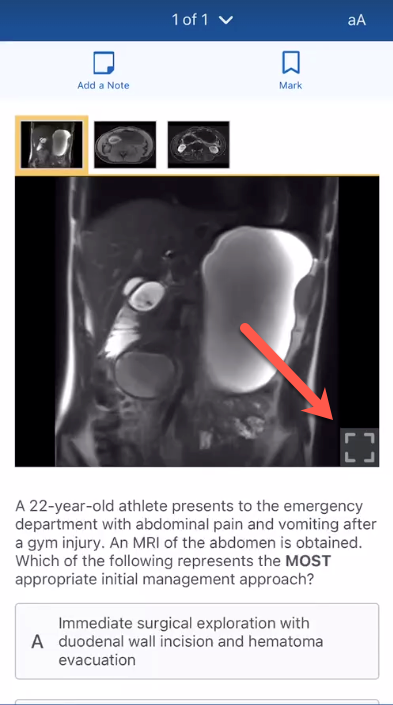
To access the image viewer while using the mobile app, tap the square in the bottom right corner of the image.
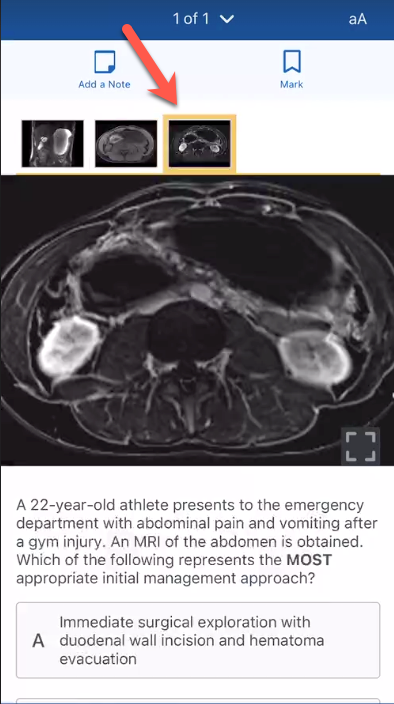
The selected image will display in the image viewer and will be highlighted in yellow in the carousel. Change the image by tapping a different image in the carousel, or swiping on the image in the viewer. To pan or zoom in on an image, pinch the image and move it around using your fingers.
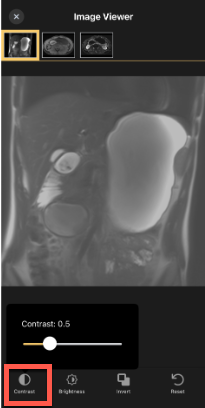
Adjust the contrast of the image by selecting the Contrast button and using the sliding scale.
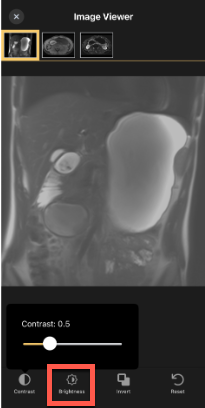
Adjust the brightness of the image by selecting the Brightness button and using the sliding scale.
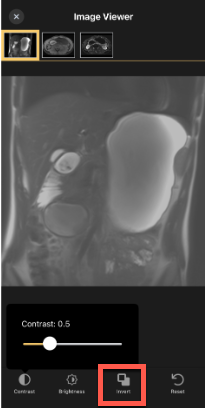
Invert the colors of the image by tapping the Invert button.
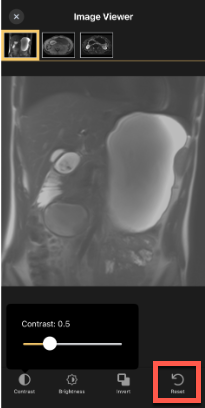
Reset to the images to their original settings by selecting the Reset button.